
To Update user permissions first and foremost YOU need to be an Owner / Administrator
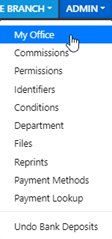
As an Owner Administrator start be selection Admin in the Top toolbar - then select My Office
This will display the list of Users assigned to your Office / Branch
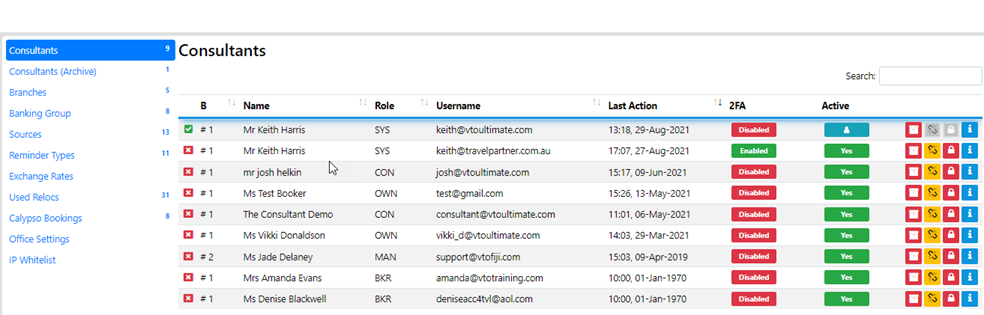
From here Drill down to the profile of the desired User by selecting the Blue i
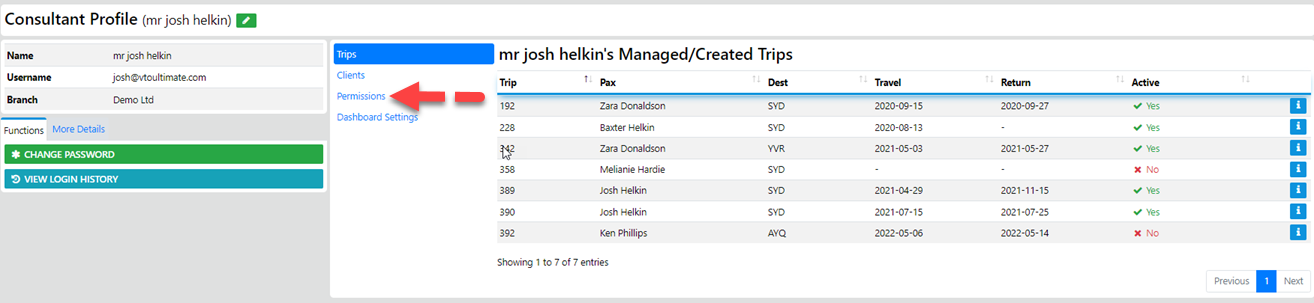
Next select Permissions and the following page will be revealed
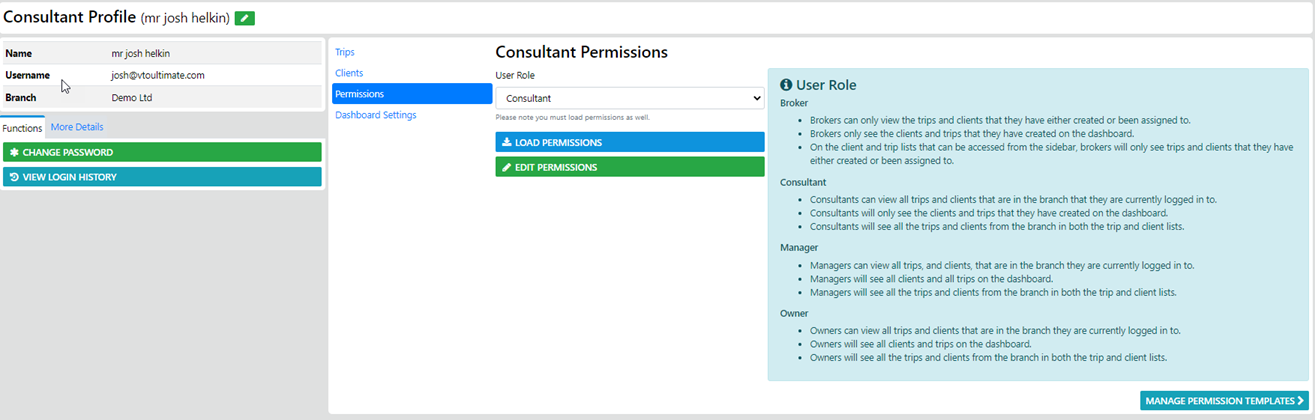
Here you have the option of Upgrading the users permissions level to either Manager or Owner status or reclassify to Broker by selecting the desired level from the list Box - If existing level is to be retained and the existing permissions restricted further or expanded (which is normally the case) simply select EDIT PERMISSIONS
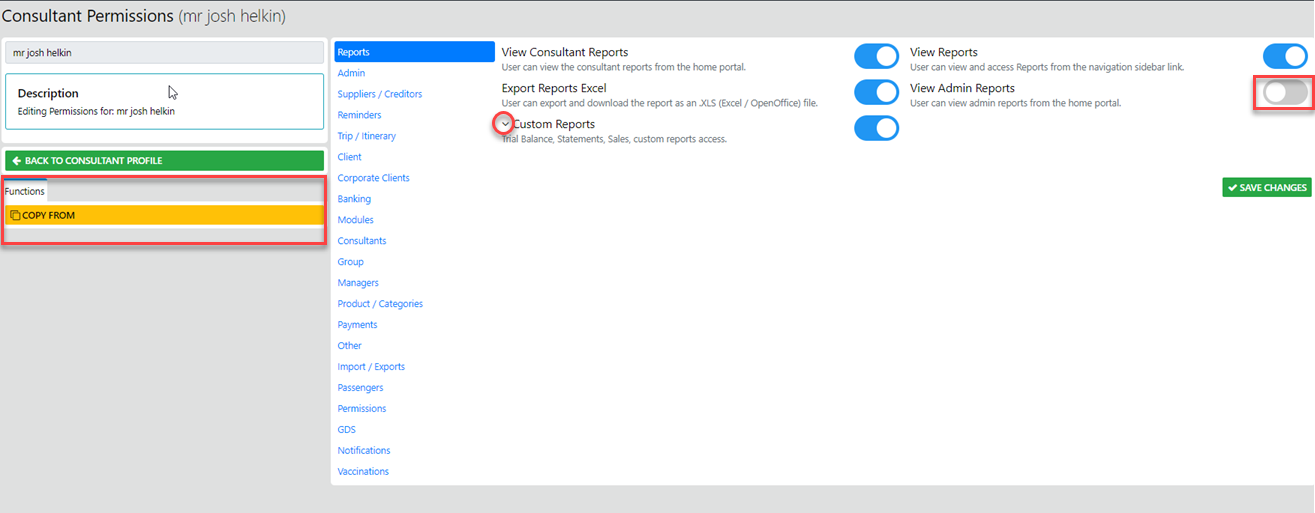
to reclassify the users permission for any of the modules displayed just turn ON or OFF the permission via the Slider Option
Elements within a select level with a "Down Arrow" preceding the level indicates that there are more options within the level which can be displayed by selecting the level label e.g. Custom Reports in our Graphic
The highlighted option Copy From allows you to copy permissions from the User YOU select to the profile which is displayed
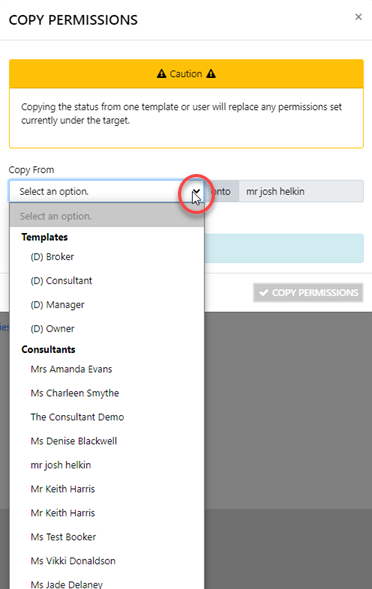
Remember to Save your changes