
gives you access to the following options
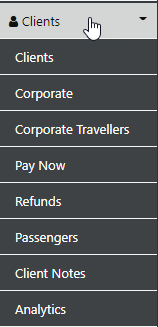
Clients
Select Clients and the filter options will display
From here you can refine your search by selecting the desired options
You can create a NEW Client Profile by selecting the Option or by clicking the "New Client" Option.
To view documentation on creating New Client (BULK) please see Creating New Bulk Clients.
Once you have created the Client Profile you can Create a New Trip OR Edit the desired Profile by selecting the appropriate Options
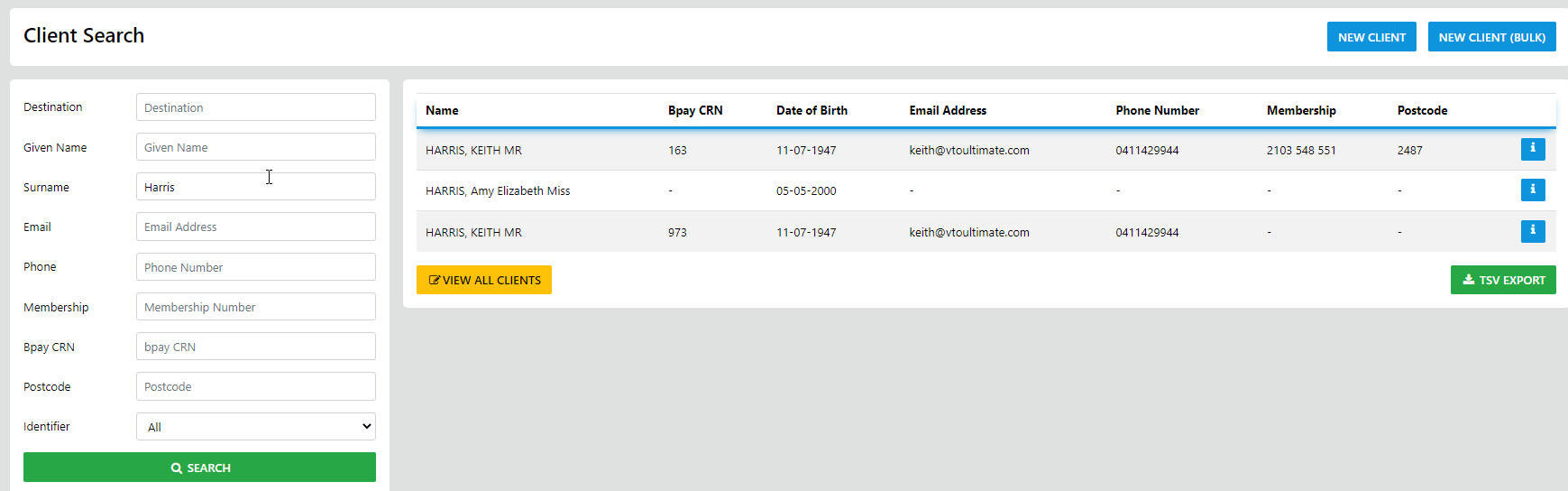
You can Print or Export the data set by selecting the desired option or "Search" by entering the client lastName in the Search box
To view the next 20 Profiles use the Pagination Controls

NEW Client Profiles both Leisure and Corporate can be created from the main dashboard or from inside the clients module
Select Client and the following form is displayed
Select New Client from the Corporate TAB and the Corporate form displays
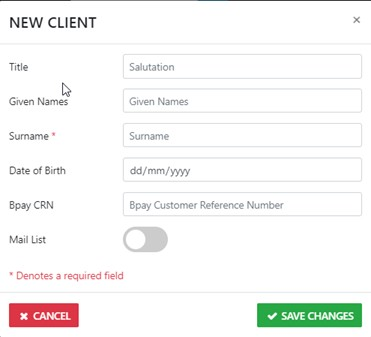
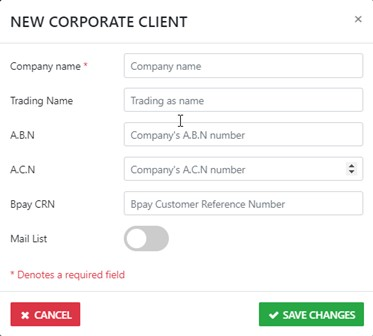
Simply enter the data as prompted in each field then select "Save Changes" now the subset of data options are displayed as follows:
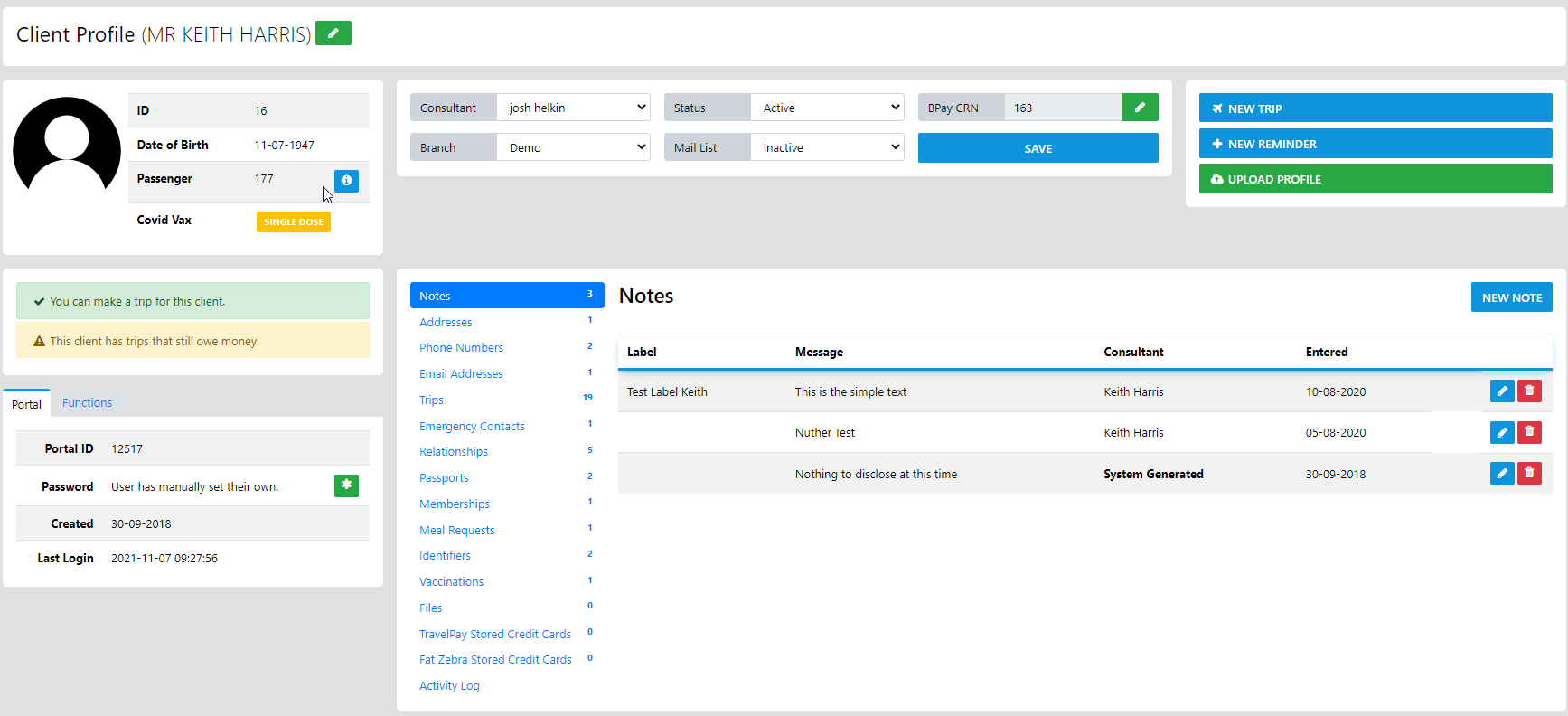
Client Portal
This is a Complimentary feature in ULTIMATE 3 - it allows you to provide your Clients with a unique username and password
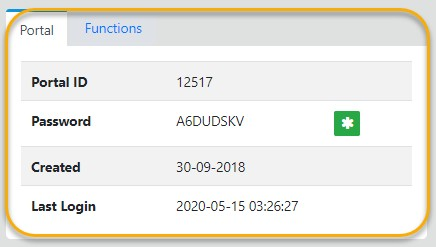
This allows the client to access any documents you send them by selecting the fully encrypted secure link attached to any email send to them from VTO
Once they log in to YOUR Client Portal they can view Receipts, Invoices, Travel Itineraries and their client profile data at which point they can Update their profile
The FUNCTIONS option allows for the following actions
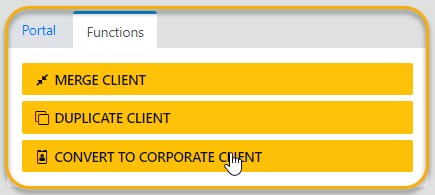
MERGE CLIENT
is used for merging duplicated profile data into the ONE Profile (the Best Practice Process is to Merge Profiles with the least info into the profile with the most data)
DUPLICATE CLIENT
is used to quickly duplicate existing profile data like lastName, Address etc as a start point for a new Profile for a family member
CONVERT TO CORPORATE CLIENT
is used to move the client profile to a Corporate Traveller Profile