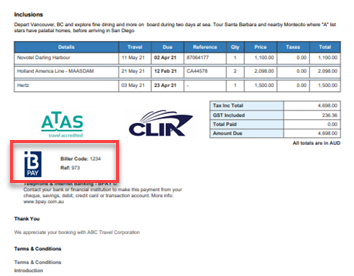
If you have adopted the BPAY system you are free to apply it to any and all Invoice and Costed Itinerary
documents
To ADD the BPAY system to VTO Ultimate you first need to make the appropriate arrangements with your Bank, they will provide you with your BPAY Biller Code, once you have received that you can ADD the Biller Code to Your Office profile as follows:-
From the TOP Toolbar select ADMIN - My Office then Select the Branches Option and drill down to the Branch
Next select BPAY SETTINGS
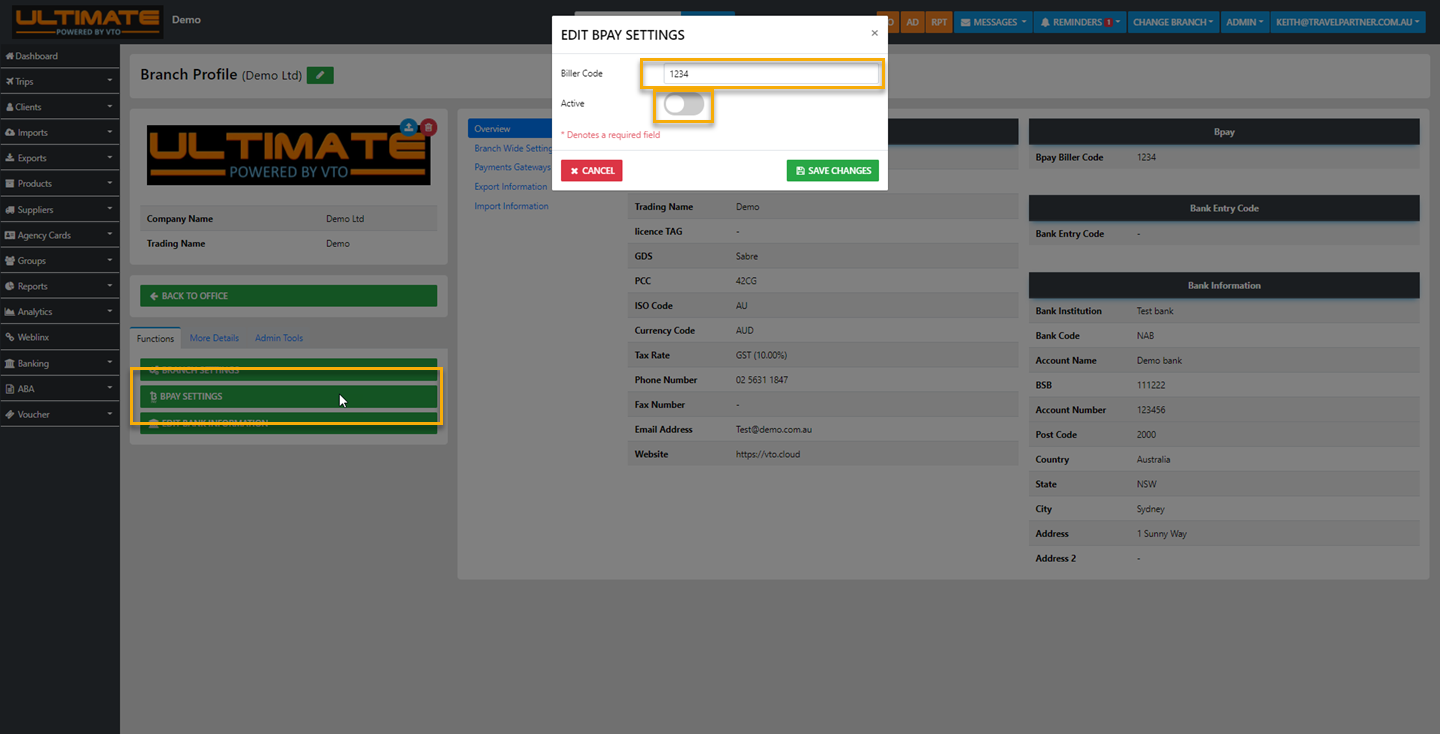
The form Edit BPAY Settings will reveal allowing you to enter the bank Supplier Biller Code for your Office/Branch
before you Save the Changes make sure you drag the greyed out Active button to the right to Activate the setting.
Creating the Client CRN (Client reference Number)
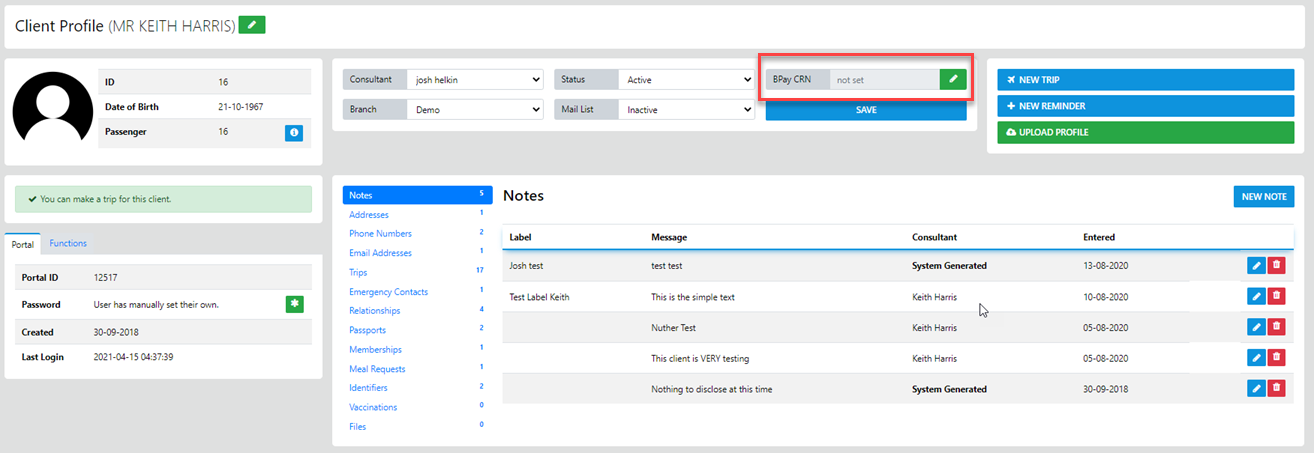
From the sideBar select Clients - Clients and search for the client/s you wish to create a CRN for the Drill down into the profile for the Client - Here you need to select the Green Pencil option in the BPAY CRN field
The Client BPAY Edit option will display with the VTO clientID
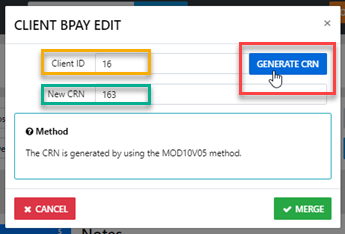
Next just select the Generate CRN option and the New CRN will display - all you need to do now is select MERGE
When you generate an Invoice or Costed itinerary for the client with a CRN the BPAY Logo and required info will be included