
The Data set for Products where the office has adopted the Wholesale Module Add On allows for automated insertion of the stored data for a given product when selected while creating a new sector in a trip
As with the basic Product settings the mandatory or required fields are indicated with an *
Ensure you set the Product to Active before selecting Save Changes
Note: you can deactivate any Product which is not applicable in your trading scenario
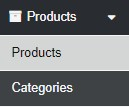
From the sideBar select Products - and the first page of system products/carrier codes will populate
go to the Search box to the right of the page and enter the Unique Product/Carrier Code you need to Update the details for OR select New Product to add new Unique WHOLESALE product.
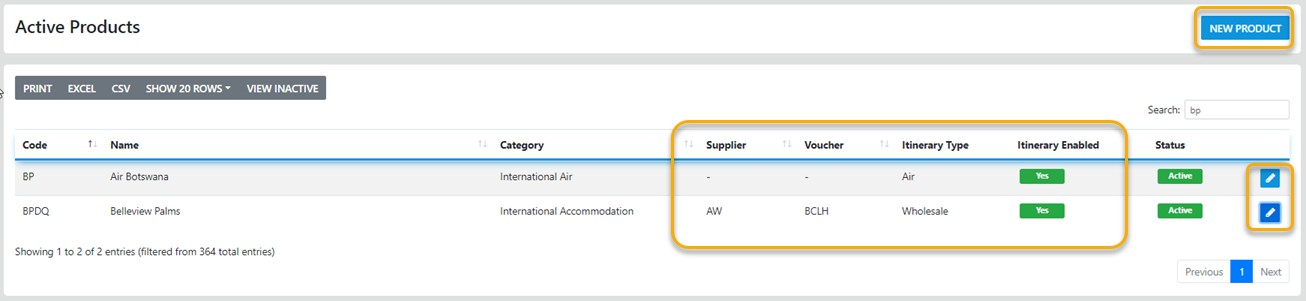
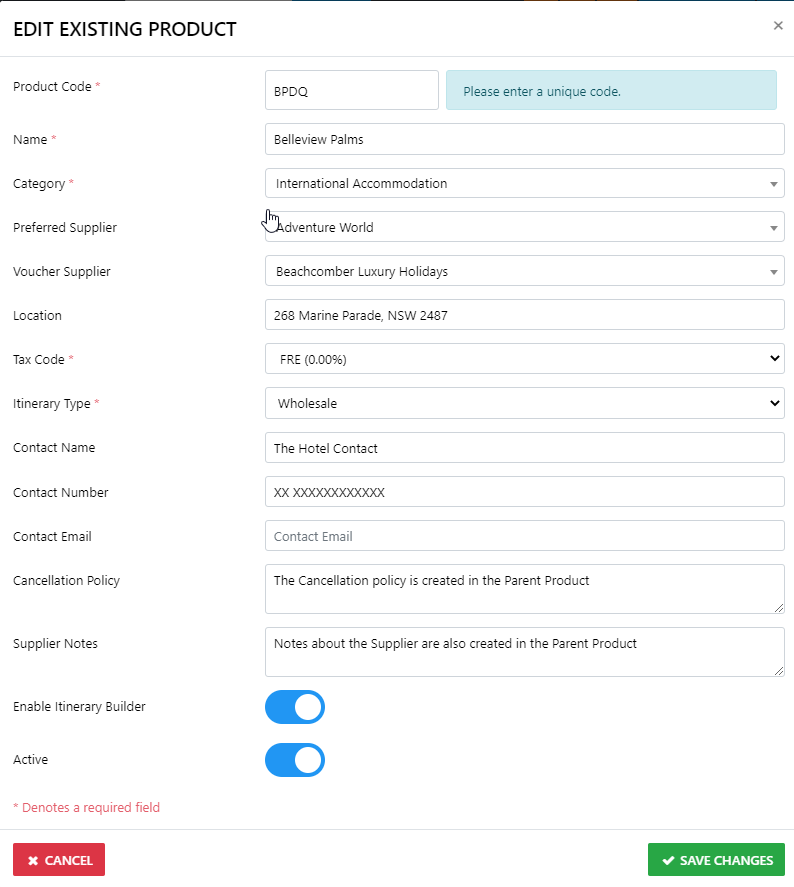
Product Code
This relates to the Parent Product
When creating a Code for your NEW Product try and make the code represent the actual name for the product as in BPR (Belleview Palms Resort)
The following form is self explanatory with regard to the information required, however it is essential when creating a Unique Wholesale Product which you need to populate the Itinerary forms that you
- Enable the Itinerary Builder - this is done by dragging the switch from grey to blue
- From the Itinerary Type List Box select the type as Wholesale
Preferred Supplier
the name of the supplier you most often acquire the product or services from
Voucher Supplier
the name of the Supplier who provides the service
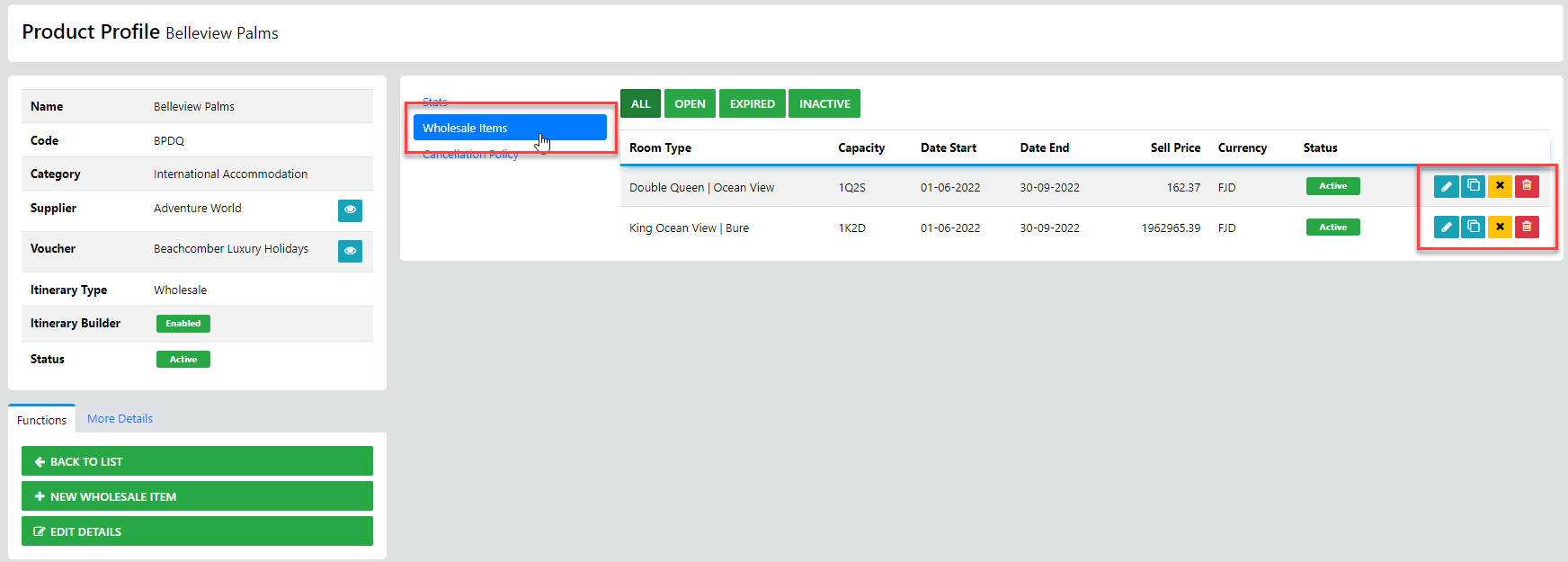
Now we create the Child products in the case of a Hotel that is the Room Types and costs etc OR whatever you want to create
The next section of Wholesale Product form controls the data that will automatically populate the sector in which the product is being used
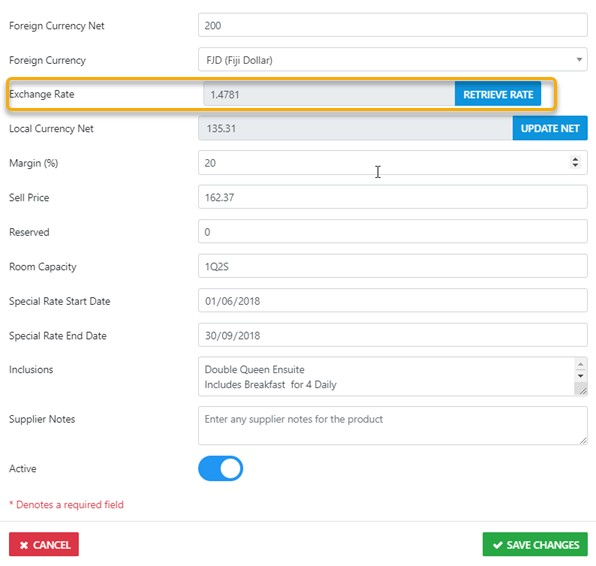
Foreign Currency Net
is the value YOU pay your supplier for the Product in the foreign currency IF applicable
Where a foreign currency is applicable select that currency from the List Box
Exchange Rate
is auto populated based on the rates from Open Exchange which are updated Hourly.
Local Currency Net
is auto calculated for you and auto populates the Net Remit Field in the Trip Sector Editor
Margin
The value you enter in the field will auto calculate Your Sell Price
Sell Price
auto populates the Unit Price Field in the Trip Sector Editor
Reserved
the Value you enter here is intended to be the Qty of the Product you may have Reserved
Room Capacity
should be entered as in the example with the Number (2) representing persons and Letter (A) meaning Adults and the Letter (C) meaning Children -
applicable combinations can be used and redisplay when selecting a product in the Trip Sector Editor
Special Rate Start Date
enter the applicable Start Date for a special rate for the product (this is redisplayed when selecting a product in the Trip Sector Editor)
Special Rate End Date
enter the applicable End Date for a special rate for the product (this is redisplayed when selecting a product in the Trip Sector Editor)
Cancellation Policy
Any applicable cancellation policy for the Supplier entered here will auto populate the Cancellation Policy field in the generated itinerary
Supplier Notes
enter any special non printable notes regarding the Supplier here.
Active
you can activate or deactivate the Product by dragging the switch from red to green or visa versa