
To UPLOAD a Client Profile from Vto into the GDS Platform the following steps are required
From the Left Hand "Tool Bar" select the Clients Icon then Clients
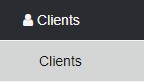
this will reveal the Search option for Client Profiles, Enter part of the Last Name of the client in the "Search" field - and press Enter - this will reveal a list of ALL clients matching the search criteria
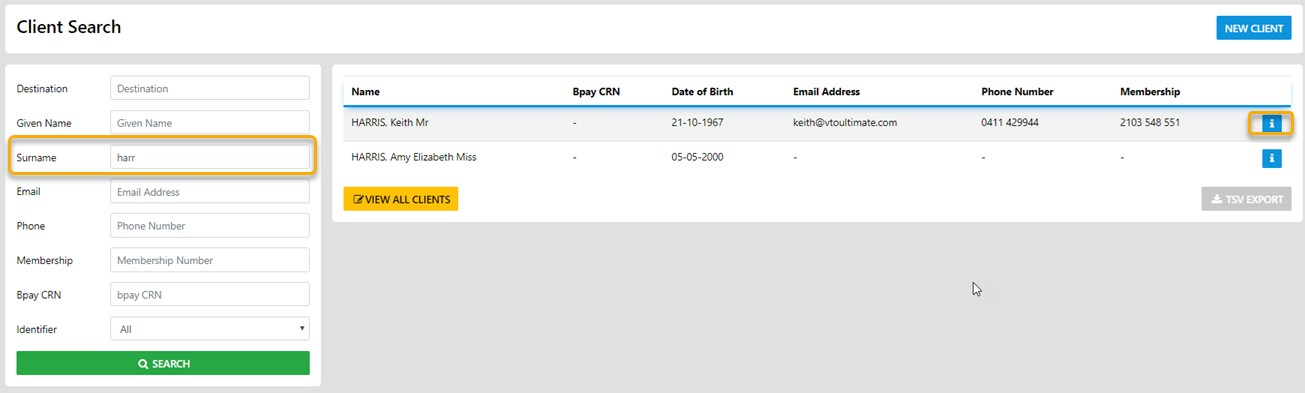
NEXT - "Drill Down" into the Clients Profile (click the Info Icon to the right of the profile) and the full profile for the selected client will display
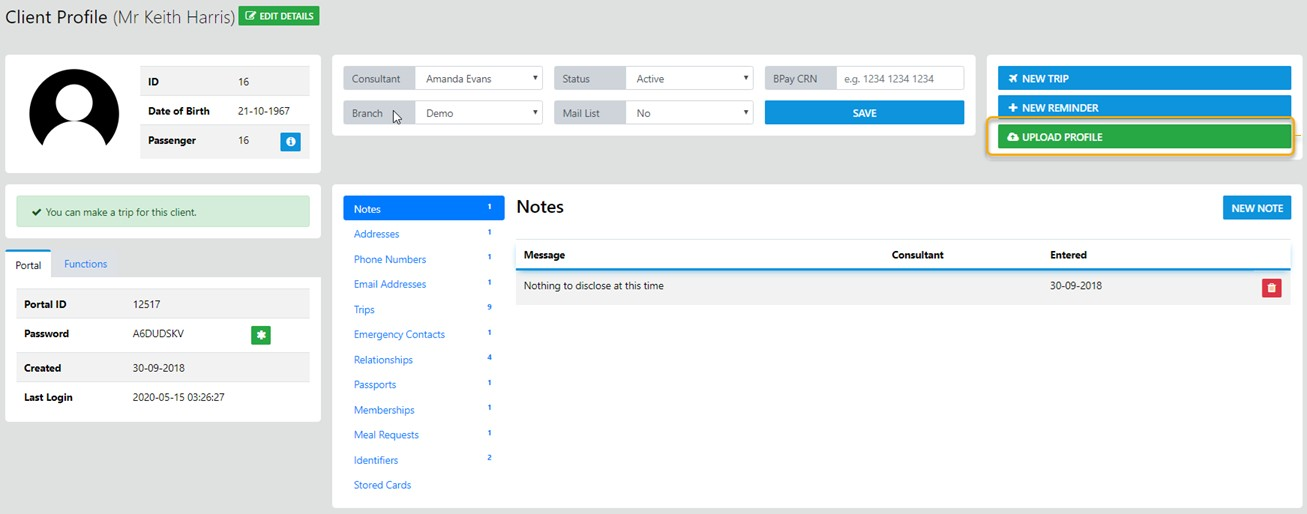
UPLOAD the relevant profile details for a Domestic OR International Trip select the Upload Profile option in the lower left of the Profile and the following data will display
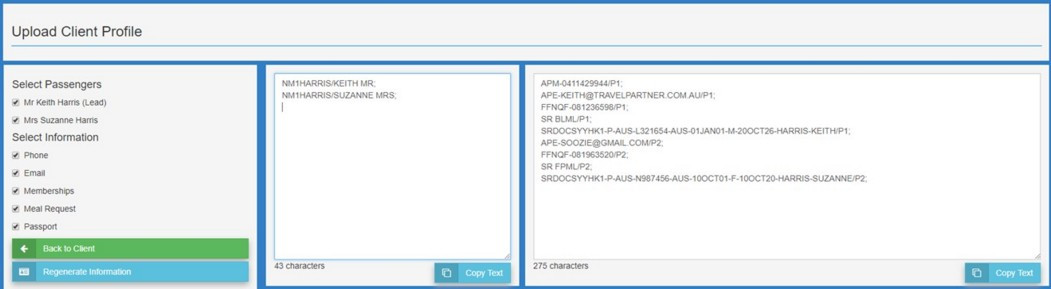
All related Client Profile Data will be displayed
Next - Select Copy Text in the Pax Name Box (to copy all pax names otherwise delete the non required names) THEN return to the open PNR in the Selling Platform and select "CTRL V" to insert the data into the PNR
(pasting the pax name will ensure the VTO Client ID is loaded on retrieval of the data)
IF you have already created the Booking in Amadeus with the PAX name/s already identified Just select the additional information you want to add to the PNR
Additional data may include the phone number, eMail address, FFN, SR (meal request), SR DOCS (passports) and the SR DOCO (knownTravelerNumber) data
Finally, select "Copy Text" THEN return to the open PNR in the Selling Platform and select "CTRL V" to insert the data into the PNR
From here you can proceed with your PNR finalisation
NOTE: you do NOT have to import the Profile before creating the PNR, you CAN create the PNR first then Ctrl-V (Paste) the Profile data into the existing PNR
You can UPLOAD multiple Client Details in the same manner provided the additional Clients are linked together via Customer Relationships in the profile.