
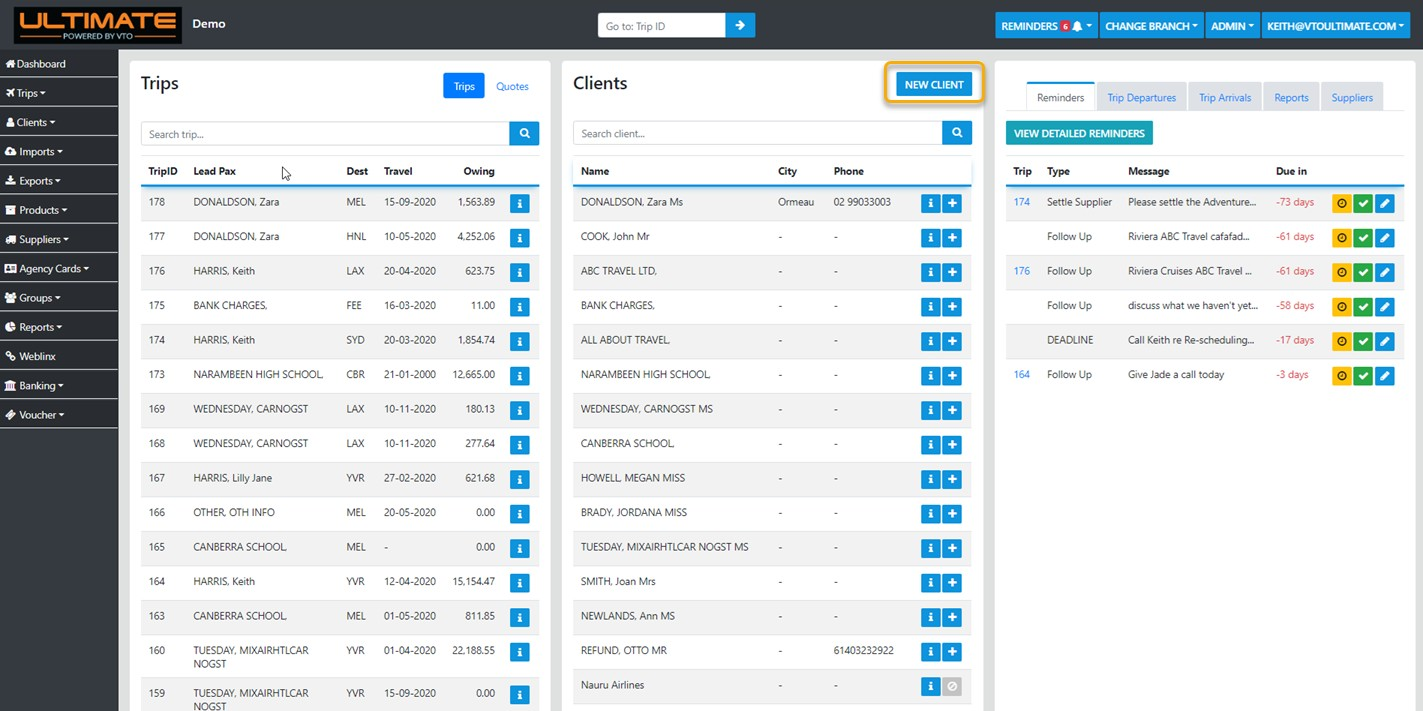
Creating a New Trip for a NEW Client (not already in your VTO DB) can be done from the Main Dashboard by selecting "New Client"
Next you'll be presented with the Client Profile template
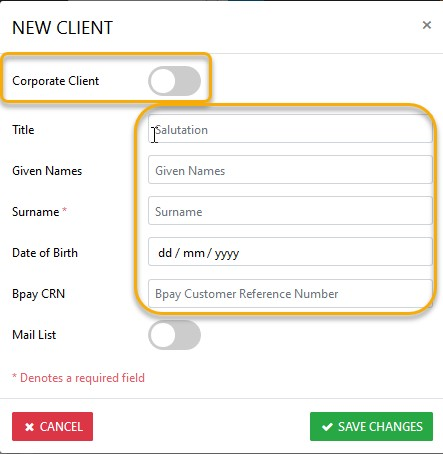
If the New Client is a Corporate entity Drag the "Corporate Client" switch to the right
Enter the required fields then select "Create New"
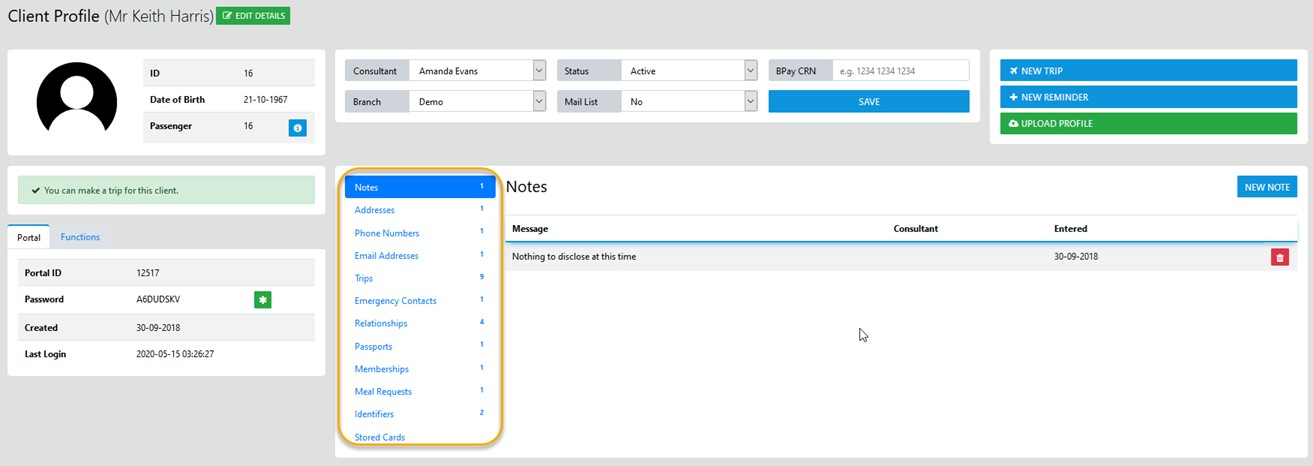
From here you can proceed to add Address, Phone, Email etc to the clients profile OR complete it at a later date if time is pressing
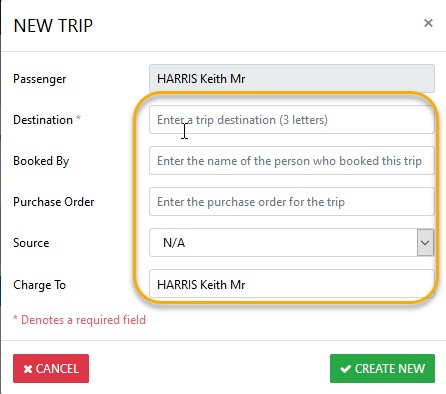
Finally select "New Trip" and the Trip form will display where you can enter all of the Trip data sector by sector via the New Sector Option
From the main dashboard you can search the entire database for an existing client by entering the client lastName or City or Phone Number
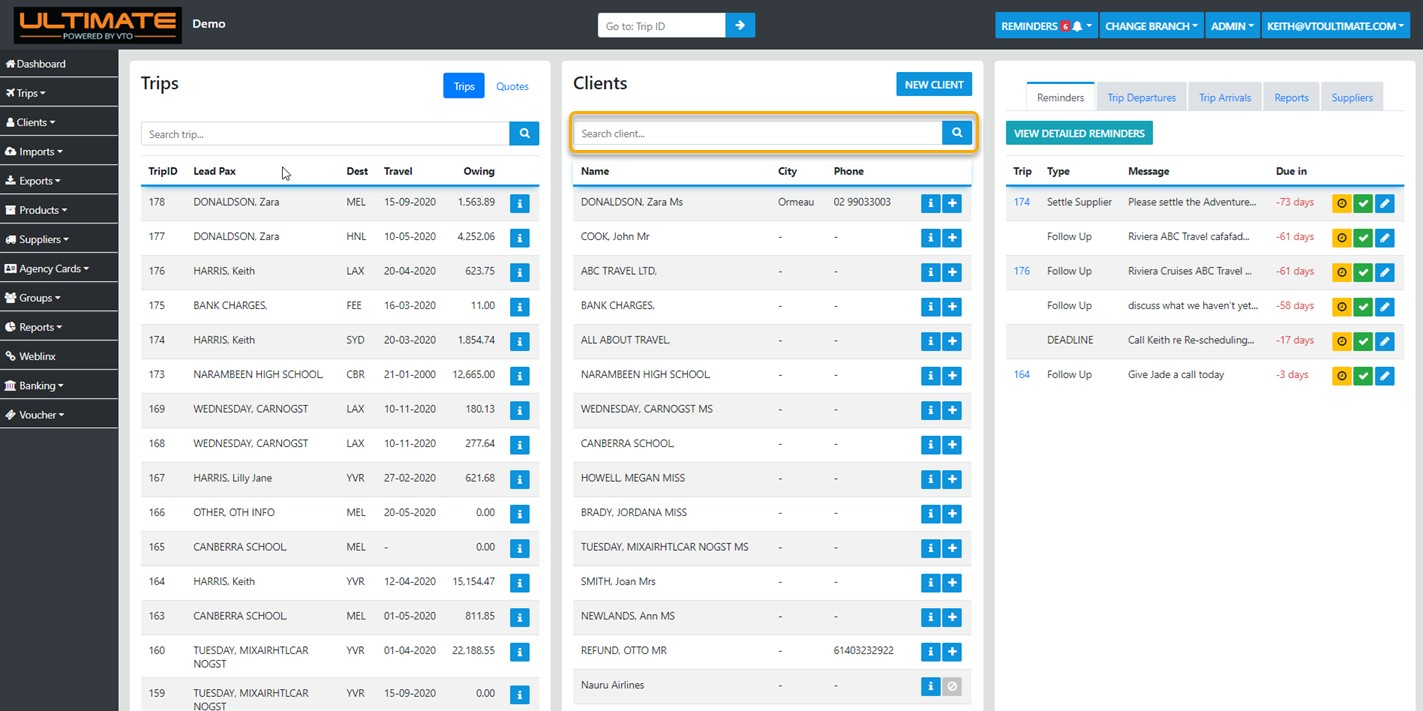
Or you can select -“Clients” from the sideBar - Selecting this option will display a list of all ‘Active” clients in your database, from here you can enter part of the lastName of the client to search
and you'll be presented with the matching results
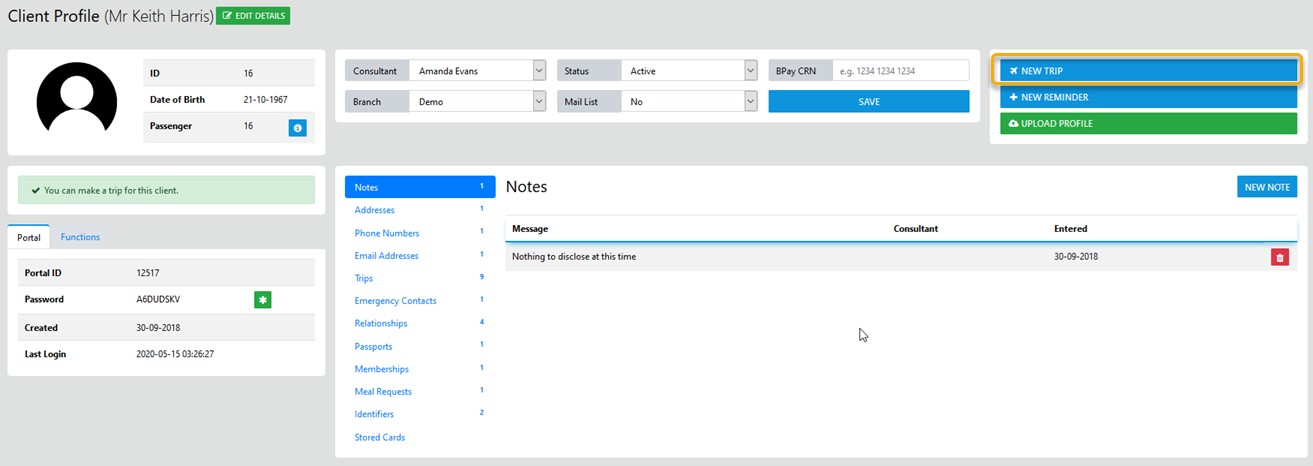
The Search options are;
All logical labels displayed e.g. Name (partial), Date Of Birth,City, State, Country, Phones, email
Select the "+" icon create a new Trip manually and the Trip Header Form will display
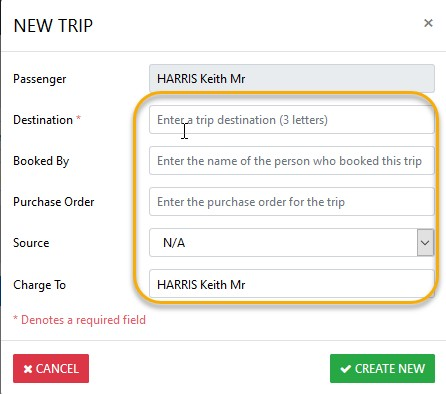
Select "Create New" to move to the next stage of creating as trip manually
Here you can set the status of the Trip - Select Yes for Active or NO for Quote then select Save Changes to save the changes
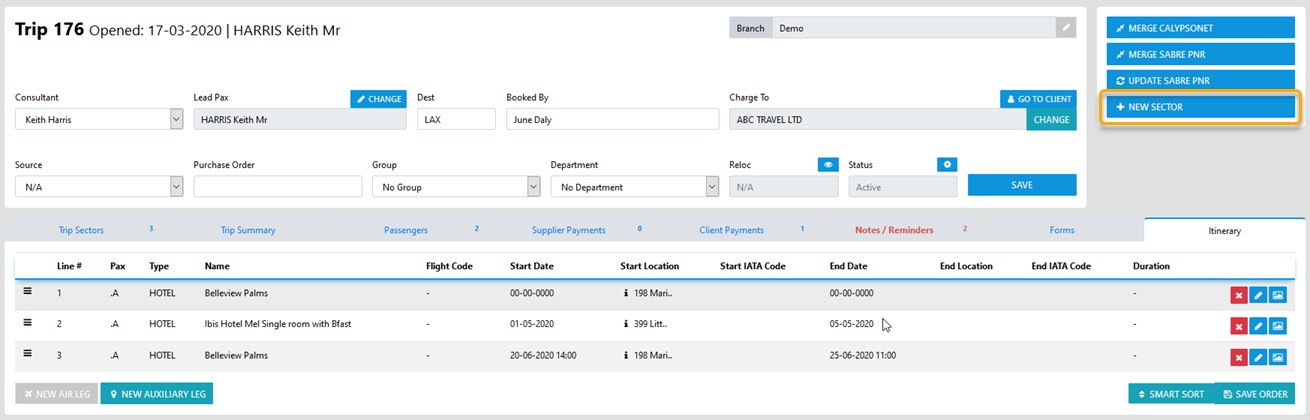
Next - select the "New Sector" option and the following form displays
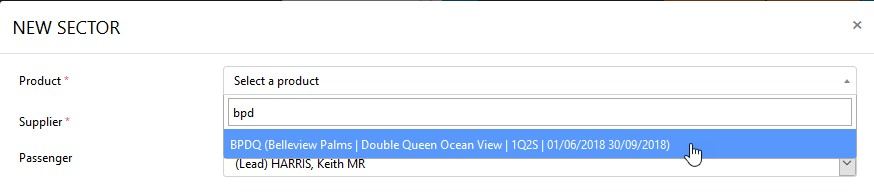
Enter the Carrier/Product Code and the Itinerary Builder will auto populate if the Product is set as Itinerised
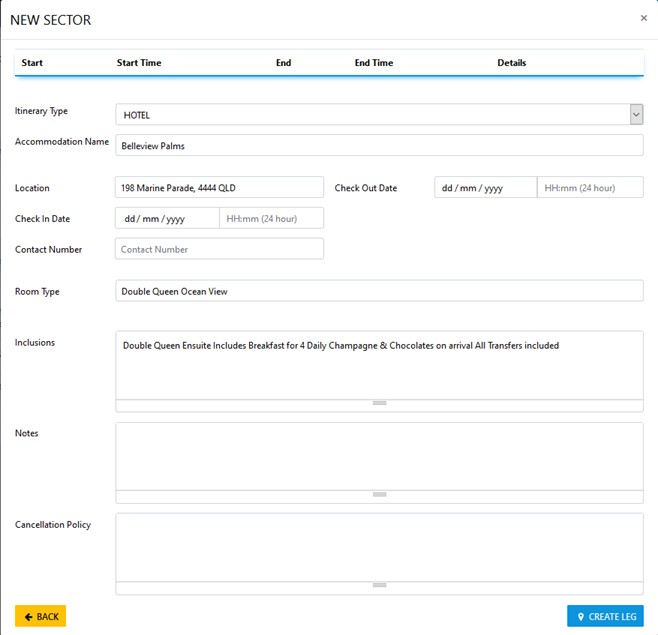
Once you have filled all of the required data select "Create Leg" then select "Back" to return to the sector details form
From fill in the necessary fields with the required information taking care to INCLUDE GST in the Unit Price for any Domestic sectors where GST is applicable
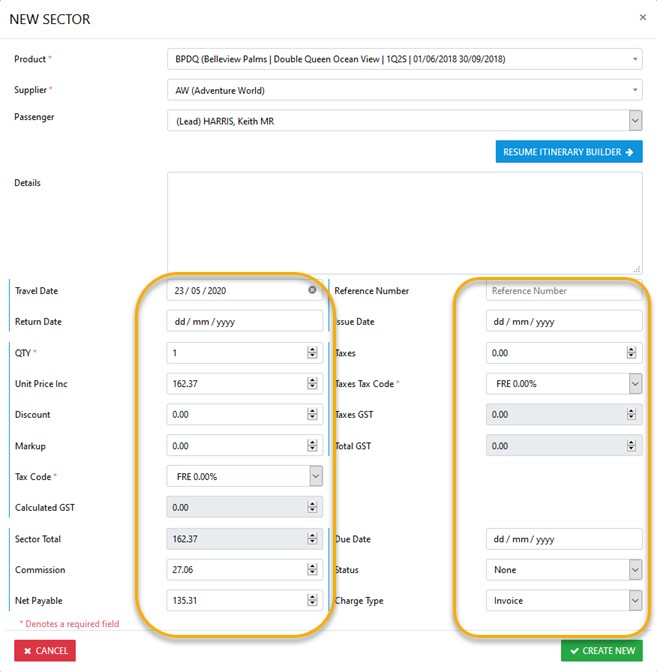
Please Note: The Taxes field is used to store the Taxes related to the following only:
1. Airline Taxes which are identified when creating your PNR - should be entered as the indicated value PLUS GST
2. The STAMP DUTY applicable to all Travel Insurance Policies - where STAMP DUTY is applicable reset the "Taxes Tax Code" to FRE
on completion Select "Create Sector" to commit the sector and the summarized detail displays
You can edit / update or add new sectors as required