Please read this instruction carefully
Mint Payments
Mint was built as a simple way for merchants to accept credit card payments online whilst still maintaining a strong focus on security, reliability and great user experience.
MINT's online payment gateway provides you with all the features and benefits you deserve with no hidden fees or charges to ensure you have all the right tools to trade online.
The Payment Gateway in VTO Ultimate allows for clients in Australia to pay for their travel items billed in ULTIMATE via the secure online payment gateway provided by Fat Zebra either via the Agency or our exclusive Ultimate Client Portal.
Once you have completed the registration requirement for Mint you can enjoy the benefits of totally hands free receipting AND Allocation of the receipt to the Trip the invoice was generated from, where the receipt amount is greater than the amount due on the Trip the residual amount will remain Un-Allocated and you will need to attend to the un-allocated funds.
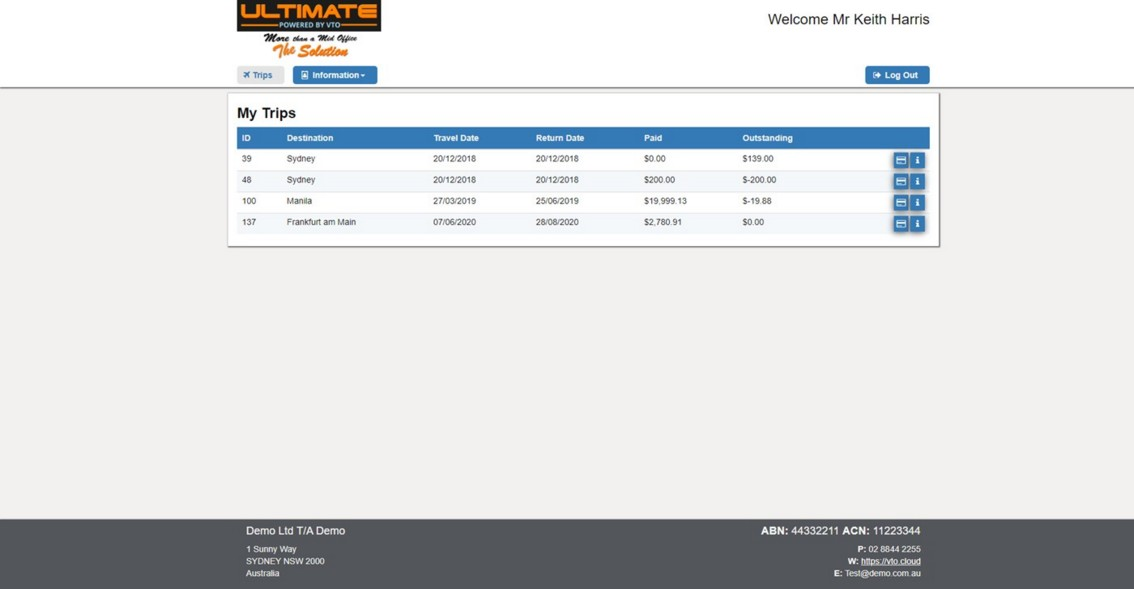
The full process begins with generating the appropriate Invoice and the email that to the client which includes the secure link to allow settlement by the Client via our Totally Secure Ultimate Client Portal;
Selecting this link will redirect your client to YOUR Branded exclusive Client Portal where your client can view their recent Trip History, Invoices and Itineraries
AND update their profile Information (address/Phones/emails/passports/ Memberships & Meal Requests)
“Payment Gateways” – This method can be used to receipt payments from the client in the trip which is a Live payment using the Client credit card details
Payment Gateways
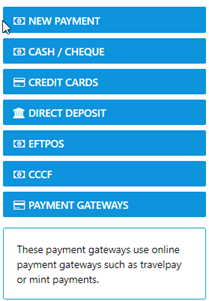
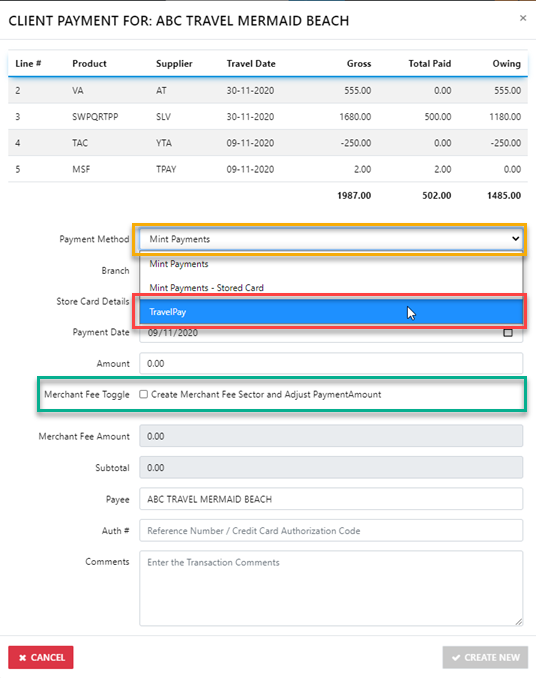
Start by selecting the Payments Gateways Option, And the following form displays
Note: Your Client have the option to pay their Invoices via our exclusive Client Portal or YOU can process the payment in the trip when the Clients Card is present.
Select the desired Payment gateway method, then select the Merchant Fee Option (the fee will be automatically added by the gateway service based on your negotiated rate).
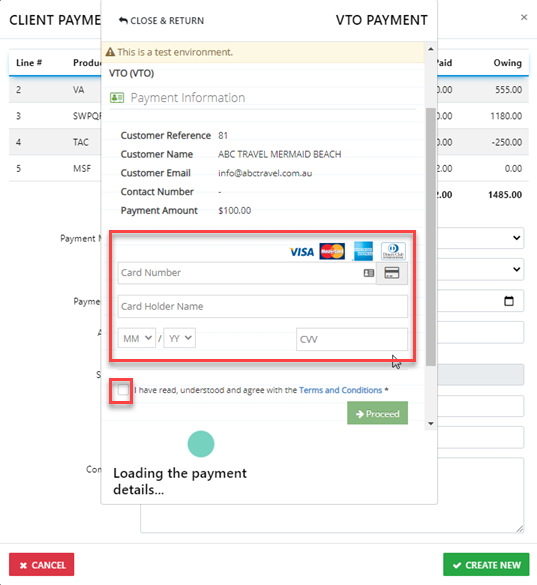
Next Select "Create New" and the following form will populate. here you need to enter the Credit card details including the expiry date and the CCV
Check the Terms and Conditions box then select "Proceed"
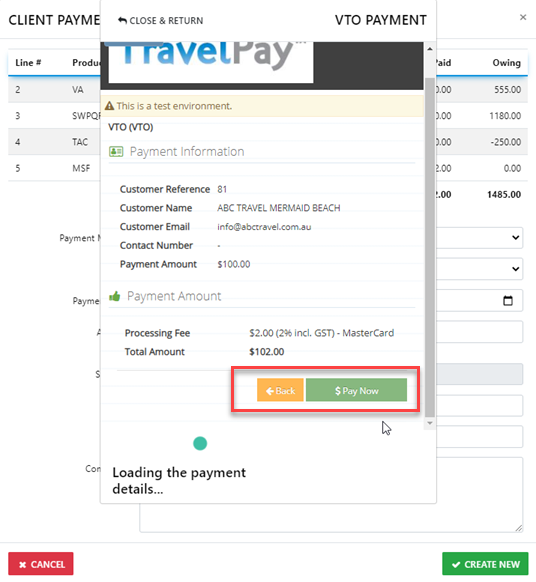
At this point the following form will display requiring you to accept the merchant fee which has been added to the payment
then select "Pay Now"
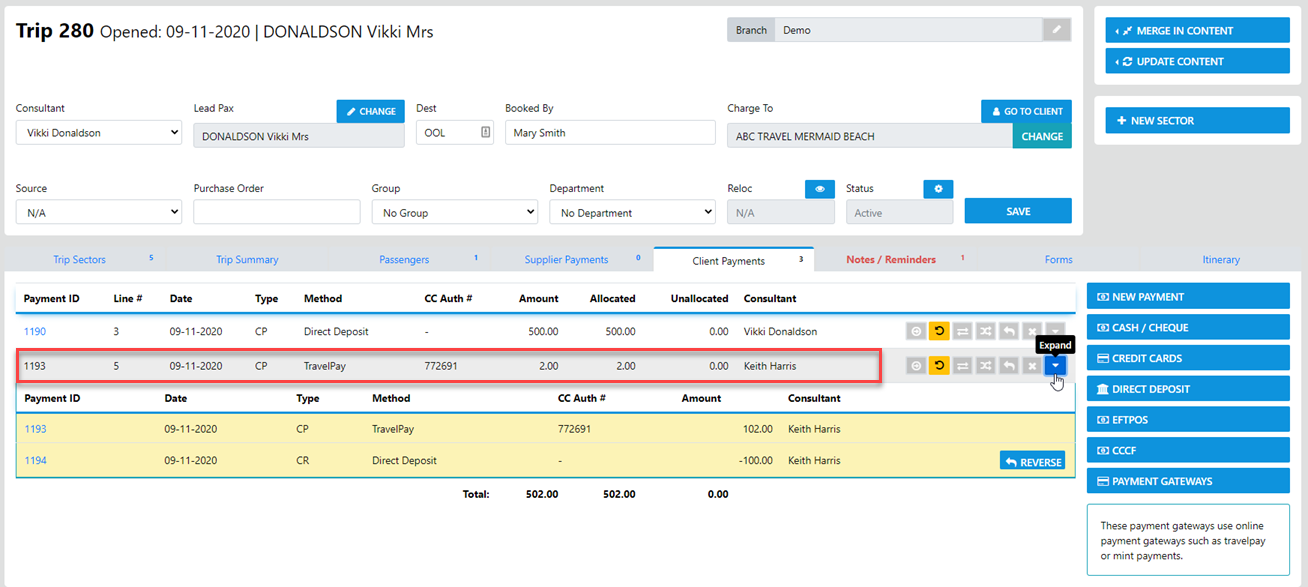
and the receipt for the payment will display which can be emailed to your client at which point the record of payment will display under the Client Payments TAB
In the case of TravelPay the merchant fee will be auto allocated leaving the sector fee to be allocated by the consultant.
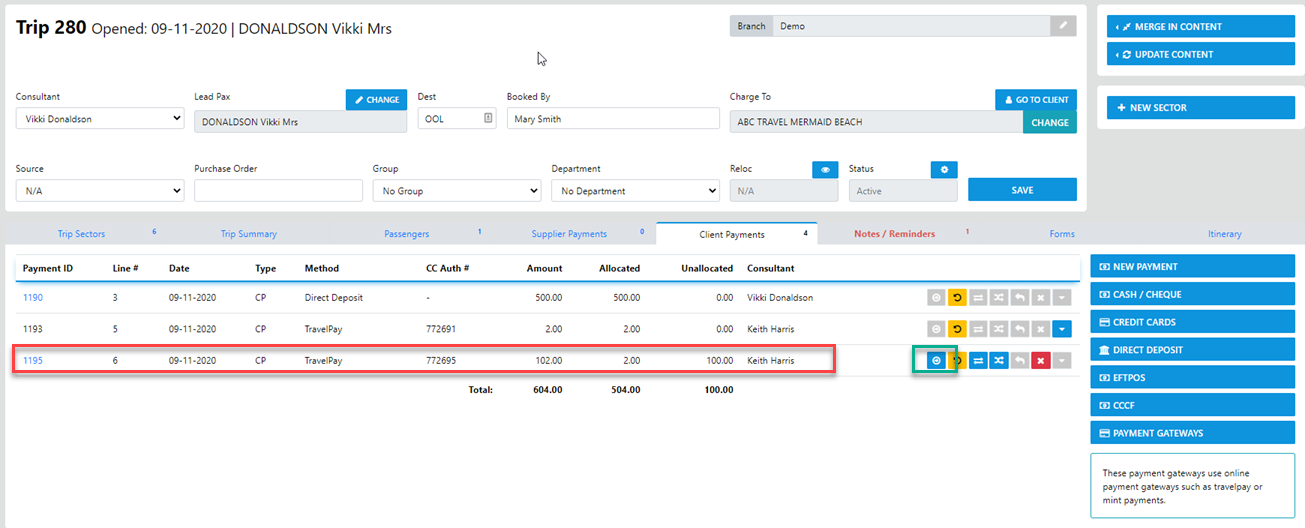
and the same data is viewable under the Supplier Payments TAB