
Note: This insight is based on using the mail merge option in Microsoft Word 2003 or higher
Step 1. Exporting Client
Select the Clients Icon on the sidebar
then select Export
select the list option and you will be presented with the following Options
Note: All data is exported in CSV format
In the following example we are preparing a normal Mail Merge so we use the option "ALL Clients"
Next - select "Export as CSV" and the "File Download" screen will display immediately above you bottom system tray
From there you can Click to Open the File and Save it to your preferred location on your system
Once you have completed the above steps you are ready to create the Merge document.
Step 2. Create the base document
Using Microsoft Word 2003 or higher, you should create your base marketing or information document (this is the document you will merge the client info into) and save it to your preferred location.
Step 3. Preparing the Merge
Open the Base Marketing document you created then
Open Microsoft Word and from the Menu Bar select "Tools" - "Letters & Mailings" - "Mail Merge"
or whilst Holding down the "Alt Key" select T then E then M
Now you will be ready to create the next part of the merge
Next - Using the Options from the Mail Merge tool bar in Word select your Merge type
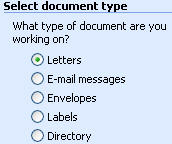
Next - Using the Options from the Mail Merge tool bar in Word select your starting document (the base marketing or info doc)

Next - you will be presented with the following options
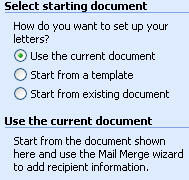
If you started the merge process with the Base Marketing or Info Document you created open you should choose "use the current document"
Next - Using the Options from the Mail Merge tool bar in Word select "Recipients"
Next - Using the Options from the Mail Merge tool bar in Word select "Browse"
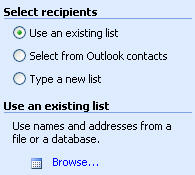
Next - the Window "Select data Source" opens with Look In: MY Data Sources
Using the "List Box" select the folder you saved the file clients_exported in (C:\Vto Exports was recommended)
change the Files of Type Option to All Files (*.*)
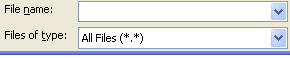
Next - Select the file "clients_exported" or whatever you renamed the file as and the following will display
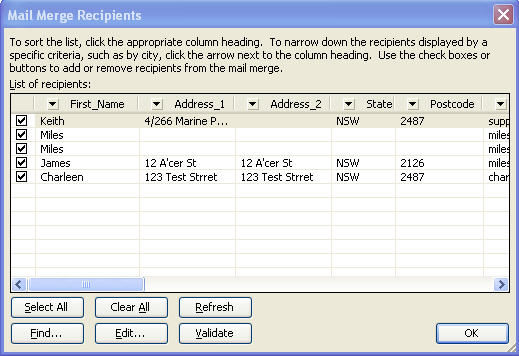
This is the data base of clients from Vto - just follow the included instructions in the header
Step 4. Inserting the Merge Fields into the Base Document
first you need to check that the Mail Merge Tol Bar is Active - you do this in Word by selecting View - Toolbars -
or holding down the "Alt" key select V then T and place a Tick beside Mail Merge once that is done the following will display in your toolbars

Next - select the icon beside the words "Insert Word Field" (if you mouse over the icons it will display their use)
and select the appropriate fields for the document as displayed in the following example pre Merge
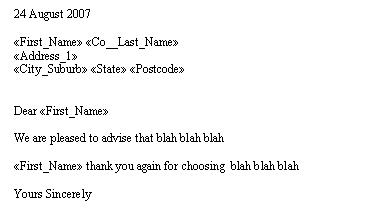
and Post Merge the same document looks like this

Generally the on system help in Microsoft Office will guide you step by step.